You open a website that you visit almost every day, and suddenly a big warning appears on your screen saying, “Connection is Not Private.” Your heart skips for a second. Is the site hacked? Is your data at risk? Or is it just a small technical issue?
If you’ve ever felt confused or worried after seeing this error, you’re not alone. This message can appear out of nowhere, even on trusted websites, and it often blocks you from accessing the page. For website owners, it can mean lost visitors and damaged trust. For normal users, it creates fear about privacy and security.
In this complete guide on “How to Fix Connection is Not Private Error?”, I will explain everything in simple and practical language. First, we’ll understand what this error really means and why it appears. Then we’ll explore its common causes in detail.
After that, we’ll go step-by-step through all the possible fixes for both users and website owners. I will also show how this error looks in different browsers like Chrome, Firefox, Safari, Edge, Opera, and Brave.
By the end of this article, you will clearly know how to identify the root cause and fix it confidently.
What is Connection is Not Private Error?
Before fixing this issue, it is very important to clearly understand what this error actually means. Many people panic when they see it, but in most cases, it is a security warning, not an actual hack.
The “Connection is Not Private” error appears when your browser cannot verify the security certificate (SSL/TLS certificate) of a website.
Modern websites use HTTPS encryption to protect the data exchanged between your browser and the server. When something looks suspicious or invalid in that encryption process, the browser blocks access and shows this warning.
In simple words, your browser is saying:
“I cannot confirm that this website is safe. Your data might not be secure.”
This error is directly related to HTTPS and SSL certificates. When a website has a valid SSL certificate installed and properly configured, you see a padlock icon in the address bar. But if the certificate is expired, mismatched, self-signed, or improperly installed, your browser raises a red flag.
Technically, this happens because:
The browser’s main job is to protect users from:
So instead of silently allowing a risky connection, the browser stops the process.
Now that you understand what this error actually means, the next important question is, where does this problem usually start from?
Let’s move to the next section where we’ll break down the real and most common causes behind this error.
Common Origins of Connection is Not Private Error?
Understanding the root causes helps you fix the problem faster. This error can originate either from the website’s server side or from your local device.
Below are the most common and real-world causes in 2026:
1. Expired SSL Certificate:
SSL certificates come with an expiration date. If a website owner forgets to renew the certificate, browsers immediately mark the site as unsafe.
Since major browsers now enforce strict certificate validation, even a single day of expiration can trigger the warning.
2. Incorrect System Date and Time:
If your computer or mobile device has the wrong date and time, the browser may think the SSL certificate is not yet valid or already expired.
This is one of the simplest yet most common causes.
3. Domain Name Mismatch:
If the SSL certificate is issued for:
example.combut you are accessing:
www.example.comand the certificate does not cover both versions, the browser will detect a mismatch and show the error.
4. Self-Signed SSL Certificate:
Some developers use self-signed certificates for testing purposes. Browsers do not trust these certificates because they are not issued by a recognized Certificate Authority (CA).
5. Corrupted Browser Cache or Cookies:
Old or corrupted cached SSL data may conflict with the current certificate, triggering the warning even if the certificate is valid.
6. Antivirus or Firewall Interference:
Some antivirus software scans HTTPS traffic. If it incorrectly intercepts or replaces the SSL certificate, browsers may consider the connection unsafe.
7. Public Wi-Fi or Network Issues:
Public networks sometimes intercept traffic for filtering or monitoring purposes. This can interfere with SSL verification and cause the error.
8. Outdated Browser Version:
Old browser versions may not recognize newer SSL encryption standards or updated certificate authorities.
Now that we clearly understand where this error comes from, the next step is the most important part, fixing it properly.
In the further section, we will go step-by-step through every possible solution for both normal users and website owners.
How to Fix Connection is Not Private Error?
Now that you understand what this error means and where it usually comes from, it’s time to fix it properly. The solution depends on whether the issue is from your side (user-side problem) or from the website/server side.
Here, I’ll guide you step-by-step so you can identify the real cause and solve it confidently. Let’s begin with the first two and most common fixes.

Check and Correct Your Device Date & Time
This may sound simple, but incorrect system date and time are one of the biggest reasons behind SSL errors.
SSL certificates work based on validity periods. Every certificate has:
If your device clock is set to a wrong date (for example, showing 2022 instead of 2026), your browser may think:
And it will immediately block the connection.
How to Fix It (Windows)
How to Fix It (Mac)
On Mobile Devices
Just enable automatic date & time in settings.
After correcting it, refresh the website and check if the error disappears.
If the issue was caused by a wrong clock, it will be fixed instantly.
Clear Browser Cache and SSL State
Sometimes your browser stores old SSL certificate information. If a website recently renewed or changed its certificate, your browser might still be using outdated cached data.
This conflict can trigger the “Connection is Not Private” error.
Step 1: Clear Browser Cache
For Google Chrome:
For Firefox / Edge / Brave / Opera, the steps are similar under privacy settings.
Step 2: Clear SSL State (Windows Only)
After doing this, reload the website.
If the problem was caused by stored SSL data, this should fix it.
Update Your Browser to the Latest Version
Browsers are constantly updated to support the latest SSL/TLS security standards and trusted Certificate Authorities. If you are using an outdated version, your browser may fail to recognize a valid certificate and show the “Connection is Not Private” error.
In 2026, browsers strictly enforce modern encryption standards like TLS 1.2 and TLS 1.3. Older browser versions may not properly support them, which leads to compatibility issues.
Why This Happens
How to Update Major Browsers
Google Chrome
Mozilla Firefox
Microsoft Edge
Safari (Mac Users)
Safari updates come with macOS updates.
Opera / Brave
Both browsers update automatically through their “About” section in settings.
After updating, reopen the website. Many times, this single step resolves the issue instantly.
If your browser is updated and the problem still exists, the issue may not be from the browser itself. Let’s move deeper.
Disable Antivirus HTTPS Scanning (Temporarily)
Some antivirus programs scan encrypted HTTPS traffic to protect you from malicious websites. While this feature is meant to increase security, sometimes it interferes with SSL certificates.
The antivirus may:
When this happens, the browser sees a certificate mismatch and shows the warning.
How to Check If Antivirus Is Causing the Issue
Common antivirus programs with HTTPS scanning:
Look for options like:
Turn it off temporarily and test.
Important
Do not permanently disable your antivirus. If this fixes the issue, you can add the website to the antivirus exception list instead.
Try Incognito Mode or a Different Browser
Sometimes the issue is not with the website or your system, but with your browser extensions or stored session data.
Incognito (Private) mode runs your browser without:
If a browser extension is interfering with HTTPS connections, Incognito mode helps you quickly test that.
How to Test in Incognito Mode
Chrome / Edge / Brave / Opera
Firefox
Open the website again in private mode.
If the website works normally in Incognito mode, the issue is likely caused by:
How to Fix Extension-Related Problems
When the error appears again, you’ve found the problematic extension.
Common extensions that may cause issues:
If Incognito mode doesn’t solve it, then the problem may be related to your network itself. Let’s check that next.
Switch Network or Restart Your Router
Network-level interference is another common reason for this error, especially on public Wi-Fi.
Public networks (cafes, airports, hotels) sometimes:
This can cause SSL verification failure.
Quick Network Troubleshooting Steps
If the website works on mobile data but not on your Wi-Fi, the issue is likely with:
Optional: Flush DNS (Advanced Step)
On Windows:
On Mac:
This clears outdated DNS records that may be causing certificate mismatch issues.
Check SSL Certificate Validity and Expiration
If you own the website and users are seeing the “Connection is Not Private” error, the first thing you must verify is your SSL certificate status.
Browsers show this error immediately if:
SSL certificates are usually issued for 90 days (like Let’s Encrypt) or up to 1 year depending on the provider. In 2026, automatic renewal is common, but sometimes renewal fails due to server misconfiguration.
How to Check Your SSL Certificate
You can:
Or use online SSL checker tools to scan your domain.
If the Certificate is Expired
If the Domain Name Does Not Match
Make sure your certificate covers:
You may need:
After fixing the certificate, clear your browser cache and test again.
If the certificate is valid but the error still appears, the issue might be in how HTTPS is configured on your server. Let’s fix that next.
Reinstall SSL Certificate Properly on Server
Sometimes the SSL certificate is valid but installed incorrectly. This usually happens when:
In 2026, browsers strictly validate the entire certificate chain. Even a small misconfiguration can break trust.
Step 1: Verify Certificate Chain
Your SSL installation should include:
If the intermediate certificate is missing, browsers cannot verify the chain of trust.
Step 2: Check Server Configuration
For Apache, your SSL config should include:
SSLCertificateFile
SSLCertificateKeyFile
SSLCertificateChainFile
For Nginx, it should use the full chain file:
ssl_certificate fullchain.pem;
ssl_certificate_key privkey.pem;
Make sure you are using the fullchain file, not just the domain certificate.
Step 3: Force Proper HTTPS Redirection
Ensure HTTP traffic is redirected correctly:
For Nginx:
return 301 https://$host$request_uri;For Apache (.htaccess):
RewriteEngine On
RewriteCond %{HTTPS} off
RewriteRule ^ https://%{HTTP_HOST}%{REQUEST_URI} [L,R=301]
Improper redirection sometimes triggers certificate warnings.
Step 4: Restart the Server
After any SSL change, always restart:
Then test again.
Fix Mixed Content Issues on Your Website
Sometimes your SSL certificate is perfectly valid, but the browser still shows a “Connection is Not Private” warning or blocks certain elements. This usually happens because of mixed content.
Mixed content means your website is loading:
For example:
Your website URL:
https://example.comBut inside your page, you may have:
Modern browsers in 2026 block insecure (HTTP) resources on secure (HTTPS) websites. This creates security conflicts and may trigger warnings.
How to Detect Mixed Content
How to Fix Mixed Content
Step 1: Replace All HTTP URLs with HTTPS
Update:
Change:
http://example.com/image.jpgTo:
https://example.com/image.jpgStep 2: Update Website Database (Important for CMS Users)
If using WordPress:
Step 3: Force HTTPS Everywhere
Make sure all internal links automatically use HTTPS.
Once all resources load securely, refresh your website and test again.
If the issue still continues even after fixing mixed content, the problem might be related to browser security policies like HSTS. Let’s look at that next.
Check HSTS and Security Policy Configuration
HSTS (HTTP Strict Transport Security) is a powerful security feature that forces browsers to access your site only via HTTPS.
While HSTS increases security, a misconfiguration can lock users out and cause the “Connection is Not Private” error.
This usually happens when:
What Happens with HSTS?
When HSTS is enabled, the browser:
That’s why sometimes the “Proceed Anyway” button is not available.
How to Fix HSTS Issues
Step 1: Verify SSL is Fully Working
Fix certificate errors first before enabling HSTS.
Step 2: Check HSTS Header in Server Config
For Nginx:
add_header Strict-Transport-Security "max-age=31536000; includeSubDomains" always;For Apache:
Header always set Strict-Transport-Security "max-age=31536000; includeSubDomains"Make sure:
Step 3: Clear HSTS Cache (User Side)
In Chrome:
Important Tip
Only enable HSTS after confirming:
How this Error Appears In Different Browsers?
Even though the root cause of the “Connection is Not Private” error is usually the same, every browser displays it in a slightly different way. The wording, error codes, and warning style can vary.
Understanding these differences helps you quickly identify the issue, especially if users report different messages.

Let’s begin with the most widely used browser.
Google Chrome
Google Chrome is very strict about SSL security. When Chrome detects a certificate issue, it immediately blocks access and shows a full-page warning.
How the Error Appears in Chrome
You usually see:
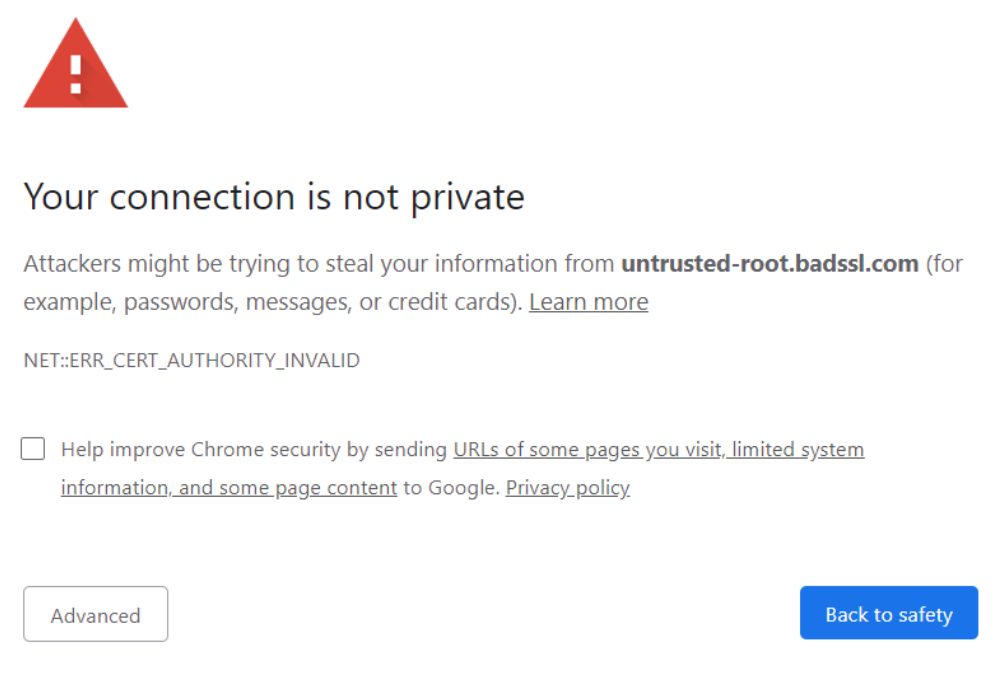
Your connection is not private
Attackers might be trying to steal your information…
Below that, Chrome shows a specific error code such as:
Chrome also shows:
What Chrome Is Actually Checking
Chrome verifies:
If any of these checks fail, Chrome blocks the site instantly.
Special Case in Chrome (HSTS Enabled)
If HSTS is active and the certificate is invalid, Chrome will NOT allow users to bypass the warning. The “Proceed anyway” option disappears completely.
That’s why many users think the website is fully broken, even if the issue is minor.
Mozilla Firefox
Mozilla Firefox handles SSL errors a little differently compared to Chrome. While it is also strict about HTTPS security, the way it explains the issue is slightly more technical and detailed.
How the Error Appears in Firefox
Instead of saying “Connection is Not Private,” Firefox usually shows:
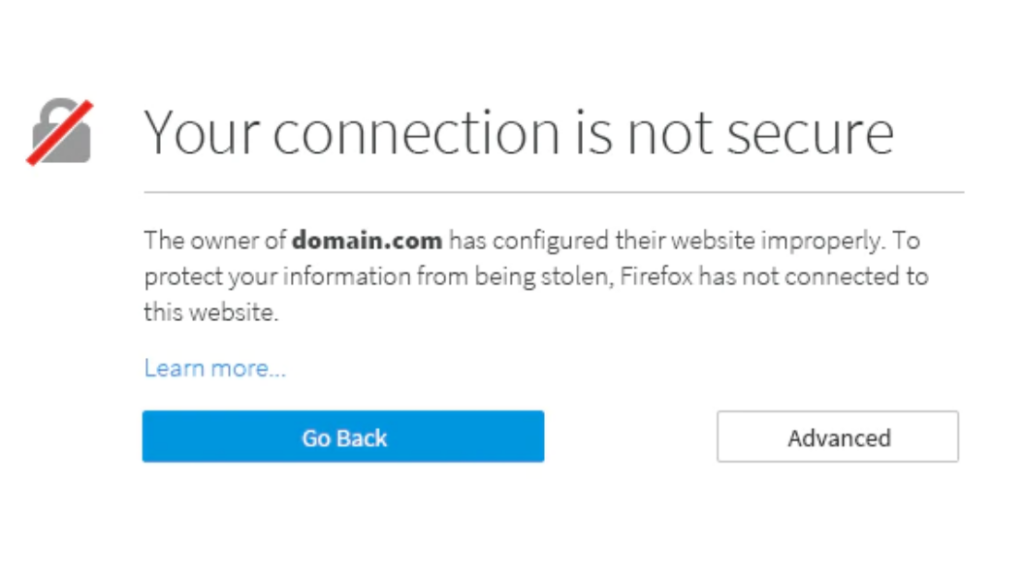
Warning: Potential Security Risk Ahead
Below that, it explains that Firefox detected a problem and did not continue to the website to protect your information.
You may also see specific error codes such as:
Firefox provides an “Advanced” button where users can view more technical details about the certificate issue.
What Firefox Is Checking
Firefox verifies:
Firefox uses its own certificate store instead of relying completely on the operating system. Because of this, sometimes a certificate may work in Chrome but fail in Firefox if Firefox does not trust that Certificate Authority.
Special Behavior in Firefox
If the certificate is self-signed or issued by an unknown authority, Firefox clearly mentions that the certificate is not trusted because it is not recognized by a trusted CA.
In some cases, Firefox allows you to add a security exception manually (not recommended for public users, but sometimes used in development environments).
Safari
Safari is the default browser for Apple devices like Mac, iPhone, and iPad. It follows Apple’s strict security policies and integrates deeply with macOS and iOS security systems.
Because Safari relies heavily on the system’s certificate store and Apple’s security framework, SSL errors often relate to macOS or iOS configuration.
How the Error Appears in Safari
When Safari detects an SSL issue, it usually shows:
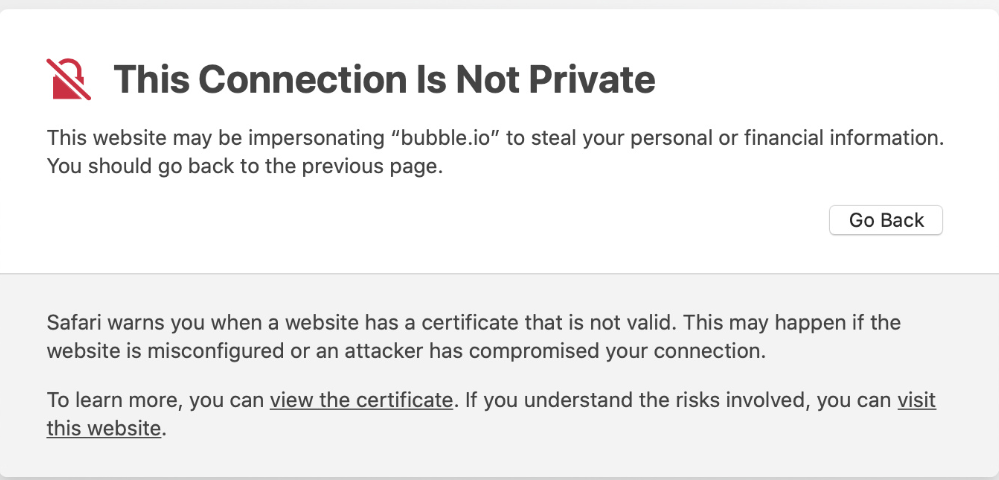
This Connection Is Not Private
This website may be impersonating the site you want to visit…
Safari typically provides two options:
After clicking Show Details, you may see options like:
Common Safari-Specific Error Messages
Safari may display messages such as:
What Safari Checks
Safari verifies:
Since Safari is closely connected to the operating system, outdated macOS versions can also cause certificate validation failures.
Special Case in Safari
If the system date and time are incorrect, Safari almost immediately throws a certificate error. This is very common on devices that were recently reset or not connected to the internet for a long time.
Also, Safari does not always provide an easy “Proceed anyway” option like Chrome, especially if HSTS is enforced.
Microsoft Edge
Microsoft Edge is built on the Chromium engine, just like Chrome. Because of this, the SSL error behavior in Edge is very similar to Chrome, but with slightly different wording and design.
Edge follows Microsoft’s security policies and uses the Windows certificate store for validation.
How the Error Appears in Edge
When Edge detects an SSL problem, it usually shows:
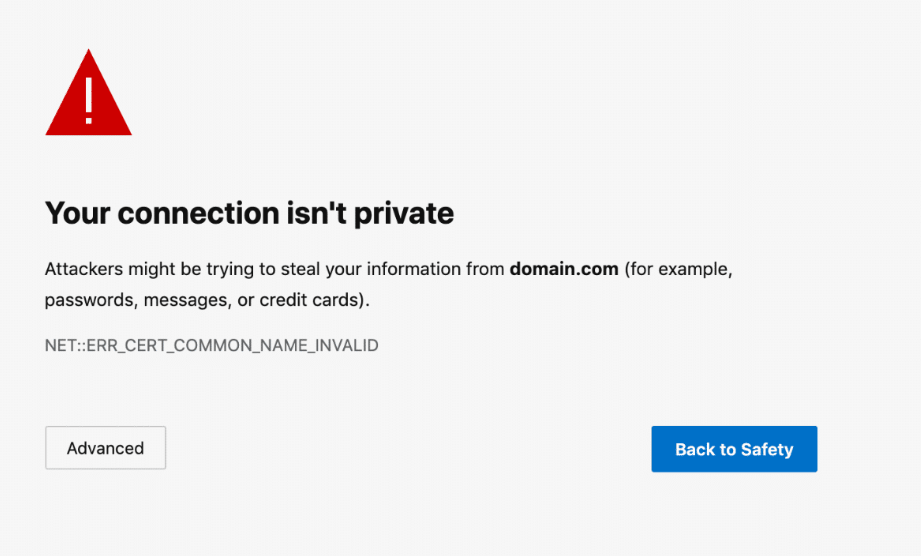
Your connection isn’t private
Attackers might be trying to steal your information…
Below the message, you may see specific error codes like:
There is usually an “Advanced” option that allows users to see more details.
What Edge Is Checking
Edge verifies:
Because Edge depends on the Windows certificate store, if Windows root certificates are outdated, SSL errors can appear even when the certificate is valid.
Special Case in Edge
If SmartScreen or Windows Defender identifies a website as risky, Edge may combine SSL warnings with security alerts.
Also, like Chrome, if HSTS is enabled and the certificate is invalid, Edge will block the website completely without allowing users to bypass the warning.
Opera
Opera is also built on the Chromium engine, so its SSL error behavior is very similar to Chrome and Edge. However, the interface and wording can look slightly different.
Since Opera uses Chromium’s security framework, it follows the same strict HTTPS validation rules introduced in recent years.
How the Error Appears in Opera
When Opera detects an SSL problem, it usually shows:
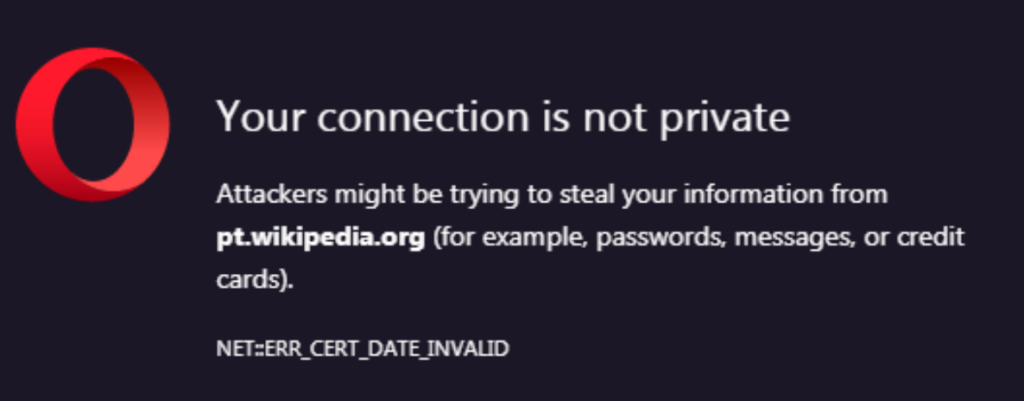
Your connection is not private
Attackers might be trying to steal your information…
You may also see technical error codes like:
Opera provides:
What Opera Checks
Opera verifies:
Since it is Chromium-based, any SSL issue that appears in Chrome often appears in Opera as well.
Special Case in Opera
Opera includes a built-in VPN feature. If the VPN is enabled, sometimes it may interfere with SSL verification, especially if:
Disabling Opera VPN temporarily can help test whether the VPN is causing the issue.
Brave
Brave is also built on the Chromium engine, but it is heavily focused on privacy and security. Because of this, Brave can sometimes be even stricter than Chrome when it comes to certificate validation and tracking protection.
How the Error Appears in Brave
When Brave detects an SSL issue, it usually shows:
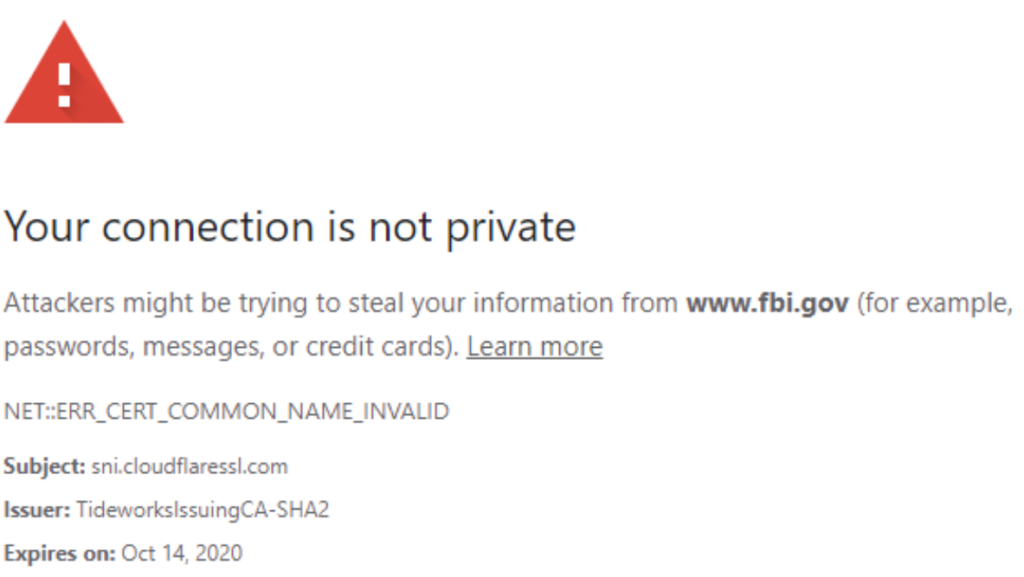
Your connection is not private
Attackers might be trying to steal your information…
The layout looks similar to Chrome, but Brave may also show additional privacy-related warnings depending on the situation.
Common error codes include:
You will see:
What Brave Checks
Brave verifies:
Since Brave uses Chromium, most certificate validation behavior is the same as Chrome.
Special Case in Brave
Brave has a built-in feature called Shields, which blocks trackers and certain scripts automatically.
Sometimes Shields may block:
If mixed content exists on the website, Brave may block those elements more aggressively than other browsers.
Temporarily disabling Shields for the website can help test if it is causing the issue.
FAQs – Connection is not Private Error
1. Is “Connection is Not Private” error dangerous?
This error is not dangerous by itself, but it is a warning. Your browser is trying to protect you from a potentially unsafe connection. It means the browser cannot verify the website’s SSL certificate properly. Sometimes the issue is small, like an expired certificate or incorrect system time. In other cases, it could indicate a phishing website or a security risk. You should never ignore this warning blindly, especially when entering passwords, payment details, or personal information.
2. Can I safely click “Proceed Anyway”?
In some browsers, you may see an option to proceed to the website despite the warning. Doing this is not recommended unless you fully trust the website and understand the reason behind the error. If the issue is simply an expired certificate on a website you manage, it may not be harmful. However, if you are visiting an unknown website, proceeding could expose your data to attackers. It is always safer to fix the issue instead of bypassing it.
3. Why does this error appear on my own website?
If you are a website owner, this error usually appears because of an SSL certificate issue. The certificate may have expired, been installed incorrectly, or not match the domain name. Sometimes mixed content or incorrect HTTPS redirection can also trigger the error. Checking your certificate validity and server configuration is the first step to solving it.
4. Why does the website work in one browser but not another?
Different browsers use slightly different certificate validation systems. For example, some browsers rely on the operating system’s certificate store, while others maintain their own trusted certificate list. If a certificate authority is not trusted in one browser, it may show the error there but work in another browser. Outdated browsers can also create this difference.
5. Does public Wi-Fi cause this error?
Yes, public Wi-Fi networks can sometimes cause this issue. Some public networks intercept HTTPS traffic for filtering or monitoring. This can interfere with SSL verification and trigger the warning. Switching to mobile data or a private network can help you test whether the problem is network-related.
6. How long does it take to fix this error?
The time required depends on the cause. If the issue is on your device, such as incorrect date and time, it can be fixed in minutes. If the SSL certificate has expired, renewal and proper installation may take a short time depending on your hosting setup. In more complex cases involving server misconfiguration or HSTS issues, it may take longer to fully resolve.
7. Will renewing my SSL certificate automatically fix the problem?
In most cases, yes. If the error is caused by an expired certificate, renewing it and restarting the web server will solve the problem. However, if the certificate is installed incorrectly or the certificate chain is incomplete, simply renewing it may not be enough. Proper configuration and testing are also necessary.
Conclusion – Connection is not Private Error
Seeing the “Connection is Not Private” error can feel stressful at first, especially when you are trying to access an important website or manage your own online business. But as you’ve learned in this complete 2026 guide, this warning is not something to panic about. It is a security protection mechanism designed to keep your data safe.
In most situations, the issue is caused by small and fixable problems such as an expired SSL certificate, incorrect system date and time, browser cache conflicts, network interference, or improper server configuration. Once you understand how SSL works and how browsers validate certificates, troubleshooting becomes much easier and more logical.
For normal users, simple steps like checking your device clock, updating your browser, clearing cache, or switching networks can often solve the issue quickly. For website owners, monitoring SSL validity, installing certificates correctly, fixing mixed content, and configuring HTTPS properly are essential practices to maintain trust and security.
The most important thing to remember is that this error is not the enemy. It is a safeguard. Instead of ignoring it, take it as a signal to investigate and fix the root cause properly. When SSL is correctly configured and maintained, your website becomes more secure, more trusted, and more professional in the eyes of both users and search engines.
Now you fully understand what the “Connection is Not Private” error means, why it appears, and how to fix it step by step. If you apply the solutions shared in this guide, you’ll be able to handle this issue confidently whenever it appears in the future.