Many digital marketing agencies and e-commerce businesses deal with multiple WordPress sites, but managing each of them is really a big, hectic job. Furthermore, it’s time-consuming and even costlier for the budget, because paying for different servers isn’t easy.
Thankfully, we have Virtual Private Servers or VPS! A single VPS host allows the management of multiple WordPress sites at a low price without affecting performance. In short, VPS stops the hassle of individual backup plans, updates, and security checks.
In this blog, our experts will guide you to Host Multiple WordPress Sites on one VPS by using three proven methods. You’ll learn to handle multiple sites using cPanel, file configuration, and the migration plugin.
Hence, say goodbye to uneasy website management and welcome effortless VPS hosting!
What is VPS Hosting?
VPS hosting is a service where the physical server is divided into many virtual servers, giving individual resources to every user so that they can customize them according to their website needs.
It means you’ll get a virtual server with isolated resources ( CPU, RAM, memory, bandwidth) and full root access.

Overall, when you use a VPS for hosting multiple WordPress websites, you won’t have to deal with unnecessary performance delays often caused by resource sharing.
Why Multiple Sites On One VPS?
Business startups, bloggers, e-commerce companies, and developers often need multiple websites to sell their products or to present their ideas.
But managing these Multiple WordPress Sites isn’t easy with shared or local servers, as they lack sufficient resources. Therefore, a single VPS is the only alternative.

We have listed below some core reasons why VPS is a better option to host Multiple WordPress Sites:
✔️ Easy Management
When hosting multiple websites, you have to repeat the same tasks like customization, maintaining backup files, and installing updates on each of them separately.
These repetitive tasks consume a lot of time and often distract you from focusing on core projects like content creation and marketing. However, VPS provides a centralized management system where you can control multiple websites from one place.
✔️ Affordability
Just like management, affordability is another major benefit that VPS hosting provides. If you purchase individual servers to monitor each website, the total cost will be very high.
Therefore, the only good option is to purchase a single VPS plan because it will help you save money as well as the time you spend on each server.
✔️ High-speed performance
You can Host Multiple WordPress Sites on Single VPS without any performance issues, as they are built with high-speed processors.
In contrast to shared or local hosting services that slow down the performance due to limited storage, poor network connectivity, and a security system, VPS hosting lets you operate multiple time-consuming tasks smoothly.
✔️ Full root access
Virtual private servers provide full root access through so that you get the freedom to control resources as per the changing website needs.
For example, if one of your WordPress websites is receiving high traffic and data, then you can allocate extra RAM and bandwidth using cPanel or WHM.
Requirements Before Getting Started
To avoid future obstacles in multiple website management, you have to be fully prepared.
This is why we have listed some necessary things that you need to do in the beginning before hosting Multiple WordPress Sites:

➡️ A VPS Plan
Choose a VPS plan with high-speed CPUs (2-4 Cores), up to 8GB RAM, unlimited bandwidth, and 40+ SSD storage. Also, check the offered security tools and privacy policy.
All these hardware tools are necessary in a VPS host because they have to handle the combined traffic, databases, and security issues.
➡️ Root Access
To host Multiple WordPress Sites on One VPS, you need root access ( IP address, username, and Password) so that you can customize the server, install new software, extensions, frameworks, manage logs and domains, allocate resources, delete files and troubleshoot bugs using quick commands.
➡️ Domain Names For Each Site
Always assign different domain names to each WordPress website so that outsiders can locate them easily. It’s necessary because a VPS provides the same IP address to multiple websites while hosting.
This creates confusion for the host itself, as it can’t determine which website to show when someone types the address.
How to Host Multiple WordPress Sites on One VPS?
Now, it’s time to learn the methods through which you can host Multiple WordPress Sites on One VPS.
We have mentioned all the necessary steps that you can follow with/without the Control Panel or just by using a migration tool.

Here are the steps to host multiple websites:
With Control Panel
This method is applicable to cPanel, Plesk, DirectAdmin, or other user-friendly panels that provide direct control to the users for server administration.
Here are the steps to Host Multiple WordPress Sites on Single VPS using cPanel:

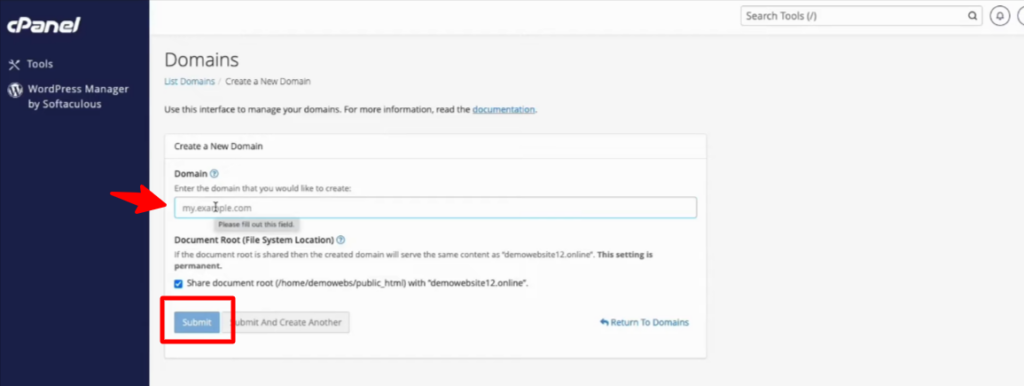
This is an easy method to host multiple websites because you don’t need any extra coding knowledge, as all the features are already present in the control panel, and the rest of the things are automatically installed by WordPress.
Without Control Panel
Now, let’s learn how we can host multiple websites on a single VPS without using a control panel, one of the best ways to fully use your server resources while keeping costs very low.
Here, we’re gonna use an Apache2 web server that makes hosting multiple websites on a single VPS possible because of a feature called virtual hosts, which allows you to serve different websites from different directories using the same server IP.
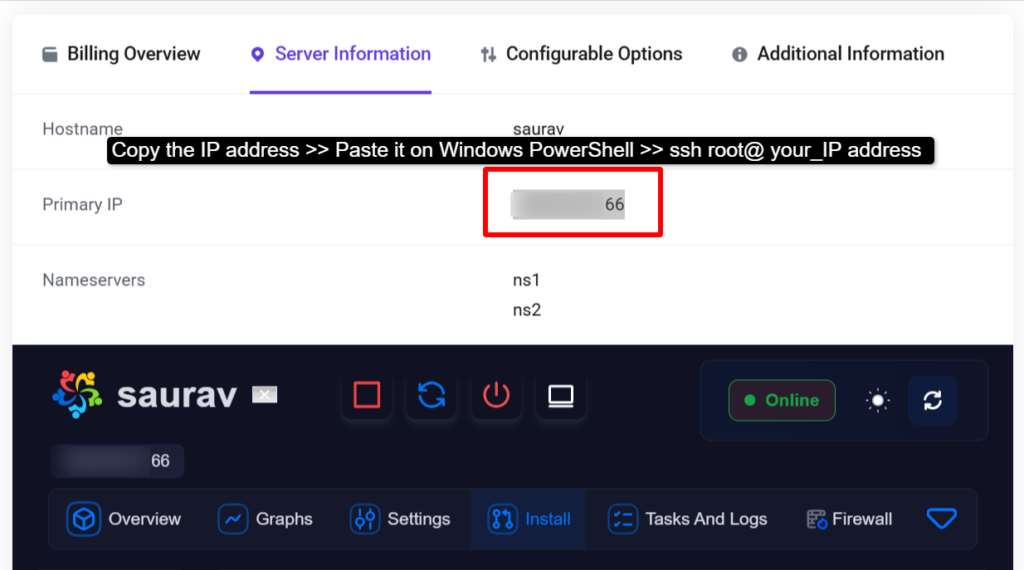
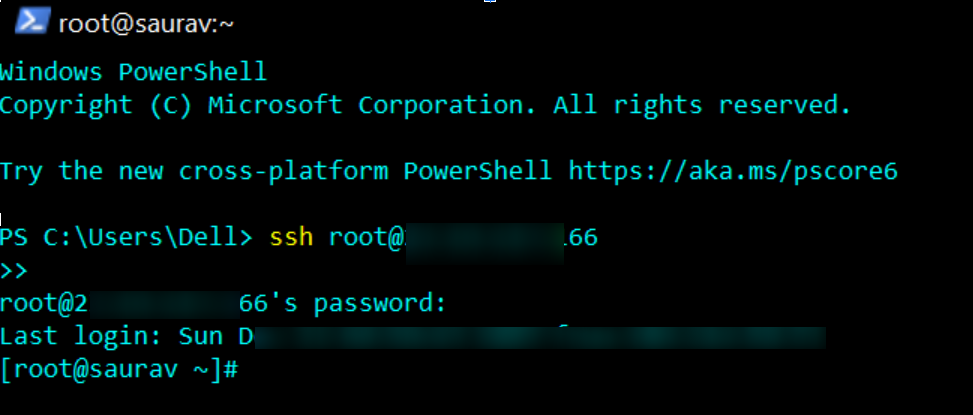
Now, what do you need to host multiple websites on a VPS? You need a Linux VPS (Ubuntu 22.04 VPS) with no control panel (self managed VPS). And on this VPS we’re gonna host two websites:
test1.com and test2.com
If you want to point a domain name to your VPS IP without using the control panel:
First find out where your domain’s DNS is currently managedCheck its nameserver (NS) records using the command dig NS domain.tld

Once you know the DNS provider >> Access the DNS zone (via terminal)Update the A record of your domain to your VPS public IP address.
The A record simply connects your domain name to the server IP.
A Virtual Host in Apache is a file that tells the server which domain name it should respond to and where the website files are located.
Using virtual hosts, Apache web servers can decide which website to load based on the domain name entered by the visitor (even though all sites share the same VPS).
If Apache2 is not already installed on your VPS, you can install it using the following command in the Windows Powershell:
sudo apt install apache2
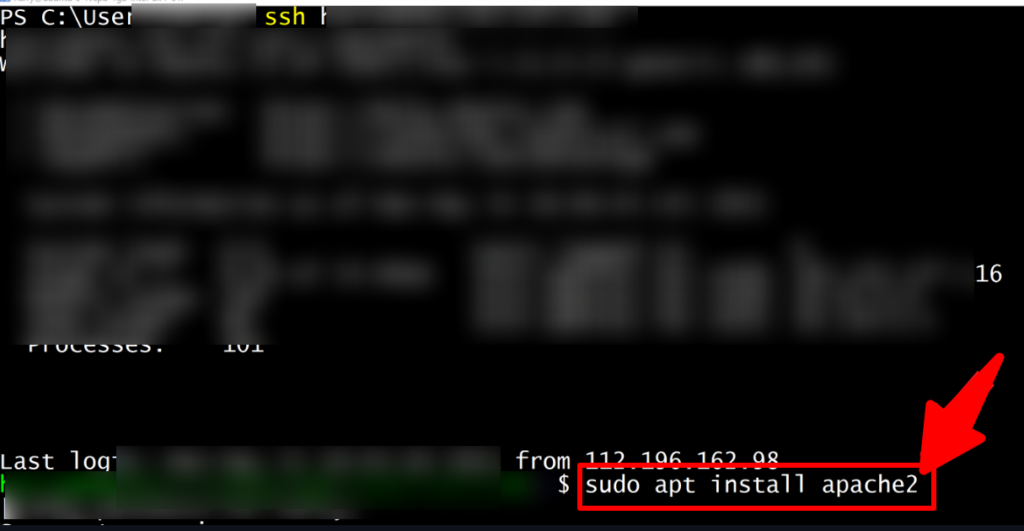
Once installed, Apache will start automatically. You can verify it by opening your VPS IP address in a browser (Apache’s default page should appear).
Each website needs its own folder to store files like index.html, images, and other assets. So, for that you need to create directories for both websites inside the /var/www folder:
sudo mkdir -p /var/www/test1.com/
sudo mkdir -p /var/www/test2.com/

This separation ensures that each website remains independent and well-organized.
Now, after creating separate directories for each website >> You need to upload your website files (such as index.html and the css codes) into their respective directories.
You can use FileZilla for this purpose:
- Connect to your VPS
- Navigate to /var/www/test1.com/ >> Upload files for test1.com
- Navigate to /var/www/test2.com/ >> Upload files for test2.com
Right after uploading the website files to the server, you need to create apache virtual host configuration files. Apache stores virtual host configurations in the /etc/apache2/sites-available/ directory.
To Create a Virtual Host for test1.com
Run the following command:
sudo vim /etc/apache2/sites-available/test1.com.conf

Then,
Paste the following configuration into the file:
<VirtualHost *:80>
ServerName test1.com
ServerAdmin youremail@email.com
DocumentRoot /var/www/test1.com
ErrorLog ${APACHE_LOG_DIR}/error.log
CustomLog ${APACHE_LOG_DIR}/access.log combined
</VirtualHost>

Finally, save and exit the file.
Repeat the same thing for the other website as well.
This process that we’ve done above tells Apache web server which folder to load when someone visits test1.com or when someone visits test2.com
Creating virtual host files is not enough! You must enable them so Apache web server can use them.
- First, move to the sites-available directory
- Run the command: cd /etc/apache2/sites-available/
Just follow the screenshot given below:

- Now enable both the virtual hosts:
- Run the command >> sudo a2ensite test1.com.conf >> sudo a2ensite test2.com.conf
- Once enabled >> Restart Apache to apply the changes: sudo service apache2 restart

Now open a browser and visit both the websites. If everything is configured correctly (just the way we’ve explained in the screenshots above), each domain should load its respective website from the VPS.
You can repeat this same process to host as many domains as you want. Just create a new directory and a new virtual host file for each site you want to add.
This way you can host multiple websites on a VPS without a control panel.
Use a Migration Plugin
This is the fastest method to Host Multiple WordPress Sites on Single VPS because you can move all the websites with their database to a new server at once. But first, you have to install the plugin.
Here are the steps for the Migration Plugin installation:
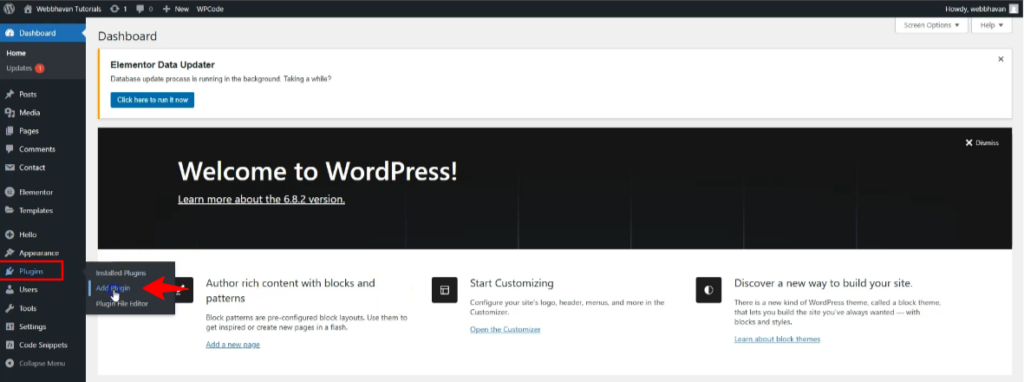
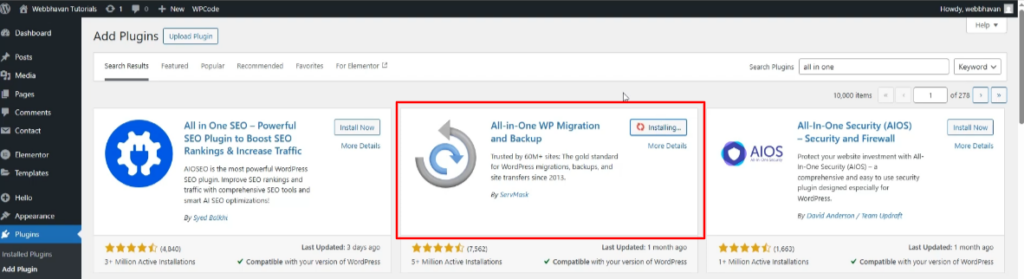
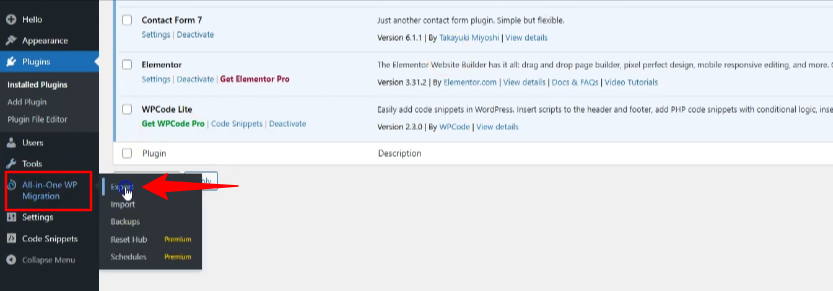
By following these steps, all your WordPress sites will be migrated to a new VPS, and now you can install another plugin called MainWP to manage these websites. And for this, you can repeat the steps given below:
Best plugins for full migration
If you’re unsure about the type of Migration Plugin you should use to simplify migration and website management, then don’t worry. We have listed below some plugins that can migrate the database smoothly without much work:
- All-in-One WP Migration
It’s one of the widely used migration tools trusted by developers and multiple site owners as it provides One-click transfer so that users can export all the files and database at once without swapping between various tools. Another amazing thing is that the All-in-One WP Migration tool is highly secure and offers built-in cloud storage integration to safeguard user’s privacy.
- UpdraftPlus Migrator
Next, we have UndraftPlus, a WordPress backup and migration plugin. This migration tool allows you to create backups of your WordPress database and files using cloud storage applications ( Google Drive, Rackspace Cloud, and Dropbox ) and restore them easily by selecting the desired components. Furthermore, UpdraftPlus offers a free version as well to migrate files to the new destination.
- WPvivid
Trusted by developers and multiple e-commerce site owners, WPvivid offers 4 migration plans based on the user’s needs. It provides an advanced backup and migration engine where users can select individual components for migration. Some main features of WPvivid include White Label and backup retention rules used for naming the user’s brand and scheduling the number and type of backup needed.
- Duplicator Pro
This quick website transfer tool allows full migration within just a few minutes without any coding needs. In contrast to other migration plugins that require pre-installed WordPress, Duplicator Pro can work without it by creating a package of all the WordPress databases. Along with this, it offers automatic backup scheduling, strong data encryption, and a streamlined installer so that users can complete migration quickly & securely.
FAQs – How to Host Multiple WordPress Sites on One VPS?
Q1: How to Host Multiple WordPress Sites on One VPS?
You can host multiple WordPress Sites on one VPS by using the cPanel, Plesk or other control panels available on the server. If you want to host multiple WordPress sites without a control panel, then you’ll have to create a directory and a separate database for each server. The fastest method is to use a migration plugin like WPvivid and All-in-One WP migration that exports all the WordPress files to the new VPS with just one click.
Q2: What is the cheapest way to host multiple websites?
The cheapest way to host multiple websites is to use a shared hosting service or a free VPS plan. These hosts allow multiple site management, but with some performance and storage limitations.
Q3: How to run multiple WordPress sites on one VPS?
To run multiple WordPress sites on one VPS, export all the websites to separate directories, and create a database for each of them. Along with this, give them individual domain names for easy navigation.
Q4: Is WordPress multisite worth it?
Yes, WordPress multisite is completely worth it for people who want to manage multiple websites easily from one place. E-commerce companies, bloggers, or multiple online business owners can definitely give it a try.
Q5: How much traffic can a VPS handle?
An average VPS host can handle high traffic without affecting the performance, but it also depends on the number of websites you want to manage with a single VPS.
Q6: Is VPS faster than shared hosting?
Yes, VPS is faster than shared hosting because it offers dedicated resources to a single user. This gives full control to the users, where they can allocate resources to multiple websites as per the performance needs.
Q7: Which hosting is best for a high-traffic website?
VPS hosting is best for a high-traffic website as it provides isolated CPU, RAM, storage, and bandwidth to a single user.
Q8: Which VPS is best for a secure WordPress site?
For secure WordPress hosting, you can choose a VPS from QloudHost as it doesn’t adhere to DMCA-friendly laws and uses strong security tools for data privacy.
Conclusion – How to Host Multiple WordPress Sites on One VPS?
Multiple WordPress site owners often face management and performance issues, as it consumes their time and reduces productivity. Moreover, it shifts the focus from other core tasks like customer service and marketing.
Therefore, it is essential to choose a single VPS host that allows multiple site management and gives full control to the users. What’s more is that these private virtual hosts offer dedicated processors, RAM, and bandwidth to the user for smooth website performance.
Our technical experts have mentioned three proven methods through which you can Host Multiple WordPress Sites on Single VPS. We have listed all the steps that you can apply with the control panel, manual file configurations or by just using a migration tool.
So, without any further delay, learn how to host Multiple WordPress Sites on One VPS easily with QloudHost!